
Controls
Observed PC bindings for grabbing, throwing, spawning, the hydraulic press and Doctor inspection, plus menu locations and device support.
Source snapshot: November 7, 2026 · Unofficial player guide
On PC, select Hands with 0. Click a subject to grab it, scroll to adjust distance, then click again to drop it or use right-click / F to throw.
These bindings are read from the game’s on-screen hints in Judge Holden’s November 5 gameplay. The official description supports mobile, tablet, desktop, console and motion-control VR; the table below is specifically the observed PC layout. Read the Hands hint at 0:20 · Official device support.
PC control reference
| Action | Input | When it applies |
|---|---|---|
| Select Hands | 0 | Hands is the numbered hotbar slot in the recording. |
| Grab / drop | Click / click again | With Hands selected and a subject targeted. |
| Throw | Right-click or F | While holding the subject. |
| Change holding distance | Mouse wheel | While using Hands. |
| Doctor inspection | V | Read a subject’s condition and injuries. |
| Ragdoll | X | Right-side Ragdoll control. |
| Build | B | Right-side Build control; availability can depend on ownership. |
| Spawn | G | Right-side Spawn control. |
| Start / stop the press | E | At the hydraulic press’s contextual prompt. |
| Fire Pistol | Click | With Pistol selected. |
| Hand Pistol to a subject | E | Near a subject, with Pistol selected. |
Source moments: right-side shortcuts, 0:05, press prompt, 3:20 and Pistol hint, 4:03. Build Mode also appears as an optional pass in the official pass listing.
A complete grab → move → throw sequence
- Select Hands from the hotbar.
- Aim at a ragdoll and click to grab it.
- Move to your test position; use the mouse wheel to adjust how far away you hold it.
- Click again for a drop, or use right-click / F for a throw.
- Observe the landing. For a closer look at the damage, switch to Doctor.
For the Bin Day badge, the official target is a throw from the top of the office building into a bin. An ordinary drop elsewhere does not match that stated objective. The precise successful alignment is not demonstrated by our source.
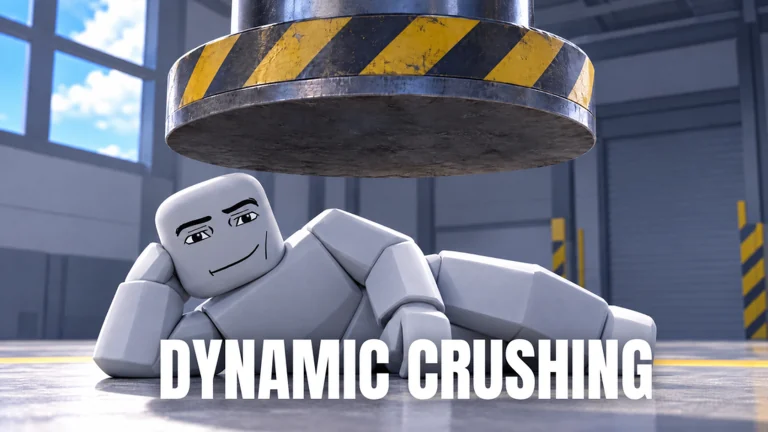
Run a press test, then inspect
- Use Hands to carry a ragdoll to the hydraulic press.
- Scroll to adjust its position beneath the press, then click to release it.
- At the machine, use the displayed E Start/stop prompt.
- Switch to Doctor V and inspect the subject to compare its condition with the starting state.
The press prompt is visible at 3:20; the Doctor inspection is shown later at 8:49. This combines observed controls into a suggested comparison test, rather than claiming a measured damage result.
Use Doctor to read the result
Doctor opens a condition view: Health, Blood, Awareness, Pain, Shock and Heart, a body diagram and a What Happened history. Select a body part to inspect its details. That makes it useful for comparing the consequences of a press test or an armed fight. A healing action is not demonstrated. See the inspection view at 8:49.
Menus and recovery choices
| Area | Observed labels |
|---|---|
| Top right | Maps, Rewards, Servers, Settings |
| Left sidebar | Weapons, Shop, Events, Sandbox, Journal; a seasonal Halloween button is also visible. |
| Right side | Doctor, Ragdoll, Self Damage, Reset Experiment, Build, Spawn |
If you are still holding a subject, click again to release it. If the experiment has become difficult to compare, the recording shows a Reset Experiment control; read any current confirmation before using it. Self Damage is a separate labeled setting, with no keyboard shortcut established here. View the menu layout.
Mobile, console and VR
These devices are listed by the developer, but this source does not show their input layouts. Use the device-specific on-screen prompts in your current session. The PC keys above should not be treated as touch gestures or controller buttons. The November 5 layout may also differ after the announced UI rework.